Refer to the sections below for instructions for adding, editing, and deleting users in VertiGIS FM.
The sections below include instructions for manually managing individual users in the VertiGIS FM User Management administration section. Instead of manually adding users and creating passwords for your employees, you can use an external authentication method to establish a user record for users in your Microsoft Entra ID tenant or Active Directory. Refer to External Authentication.
Add a User
You can manually add a user to the system on the Administration > Roles/Permissions > User Management page if
•an employee for the person for whom you are creating a new user already exists in the system; or
•a contact for the person for whom you are creating the user already exists in the system.
To Add a User Manually
1.Navigate to the User Management page (Administration > Roles/Permissions > User Management).
2.Click the Add ( ) icon.
3.Enter the user details in the form. The Username, Password, Confirm Password, Contact, and Language fields are mandatory. Refer to User Details for more information.
The password must comply with the password guidelines specified by an administrator. The system displays an error message if it does not. Refer to Password Guidelines for more information.
4.Click Save and Close.
Copy a User
You can create a user who shares all the properties of an existing user by copying the existing user. The Username, Password, Contact, and Valid From fields will have unique values, but the rest of the user fields can have inherited values. This feature is helpful if you want to create many users who share the same roles and privileges.
To Copy a User
1.On the Administration > Roles/Permissions > User Management page, double-click the user you want to copy.
2.Click the Copy ( ) icon.
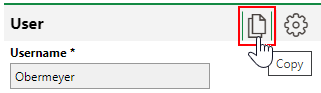
3.Enter a unique Username for the new user.
4.Enter the new user's password in the Password text box, and re-enter it in the Confirm Password text box.
5.Click the arrow in the Contact menu and select the contact with which the new user is associated.
6.Update any additional details as required.
7.Click Save and Close.
Edit a User
When you edit a user, you can change any of the user details associated with them. This includes changing their password.
To Edit a User
1.On the Administration > Roles/Permissions > User Management page, select the user whose details you want to edit.
2.Click the Edit ( ) icon.
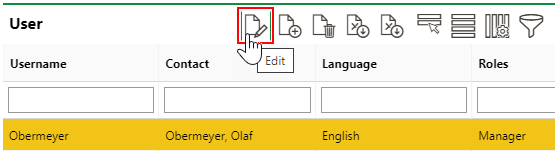
3.In the form, update the information you want to edit. You can also add or remove Roles, Trades, or Object Rights in the respective sections below the form.
If changing a user's password, you are required to enter the new password in the Password text box and re-enter it in the Confirm Password text box.
4.Click Save and Close.
Delete a User
You can delete a user on the Administration > Roles/Permissions > User Management page by selecting them in the User table and clicking the Delete ( ) icon.
Export User Data
You can click the two  icons to export reports on the users in the system. The reports are exported as Excel files.

Export User Data Icons
The Excel Report () icon (on the left) exports the user data in the table for all selected users into the report. If no users are selected in the table, all users are included in the report.
The Export All User Data () icon (on the right) exports all the user data for all users into a report. The Excel file includes additional worksheets for user data not shown on the Administration > Roles/Permissions > User Management page, including the user's Personal Data, Employee data, and more.