The Personal Data page acts as a personal resource for you, the user signed in to the application. It includes
•your user profile. User profiles are created and managed in the User Management administration, and reflected in the User section on your Personal Data page.
•your employee profile or contact profile (or neither). Both are types of contact entities saved in the Contact Management module. Typically, internal users who work for the organization associated with the Own Tenant or Client page are created as employees, and external parties (for example, contractors who need access to VertiGIS FM) are created as contacts.
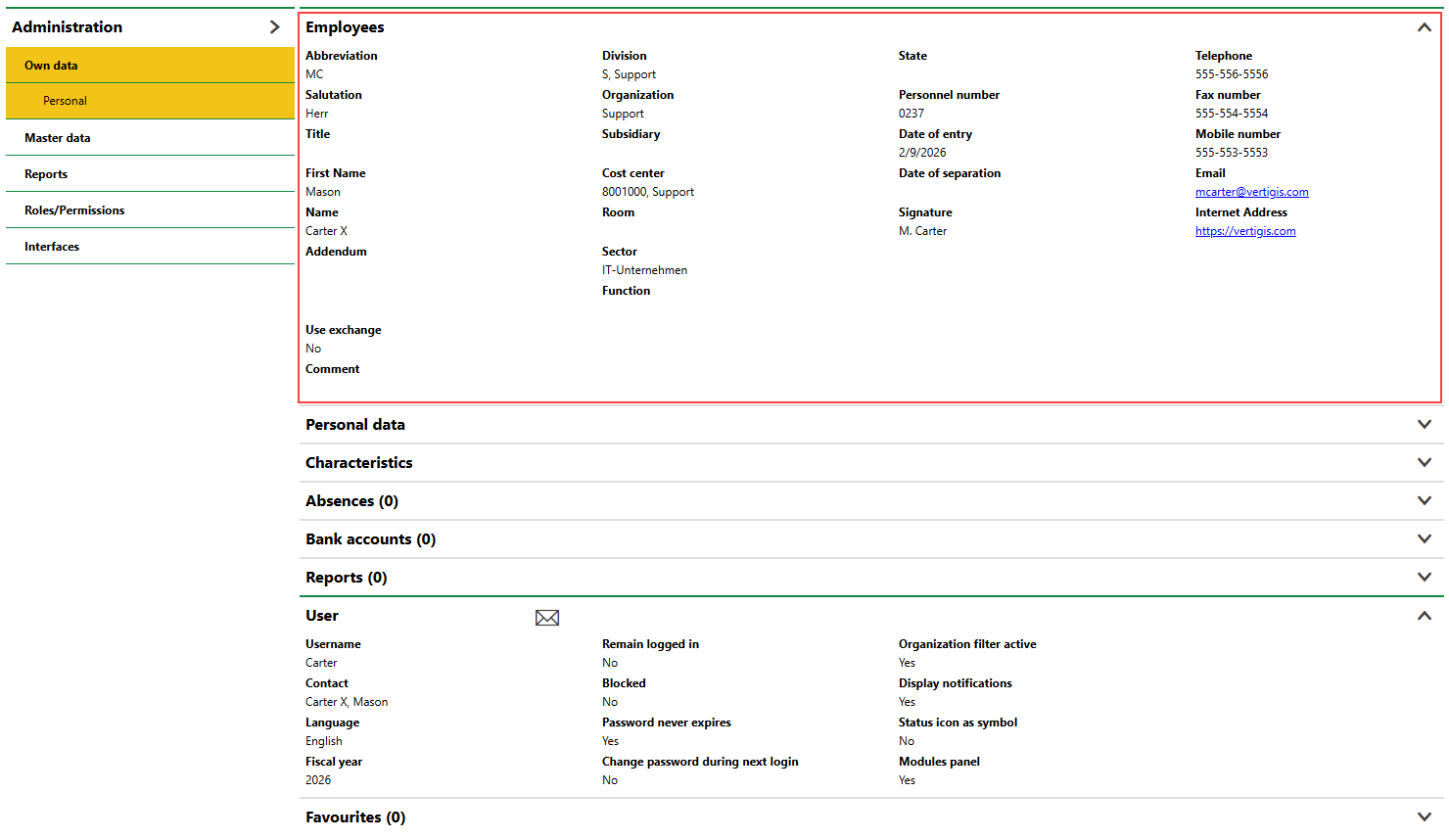
Personal Data Page for User Linked to Employee
To change whether your Personal Data page reflects a contact or an employee, link your user profile to a contact or employee, respectively. You may need an administrator to make this change if you do not have sufficient privileges.
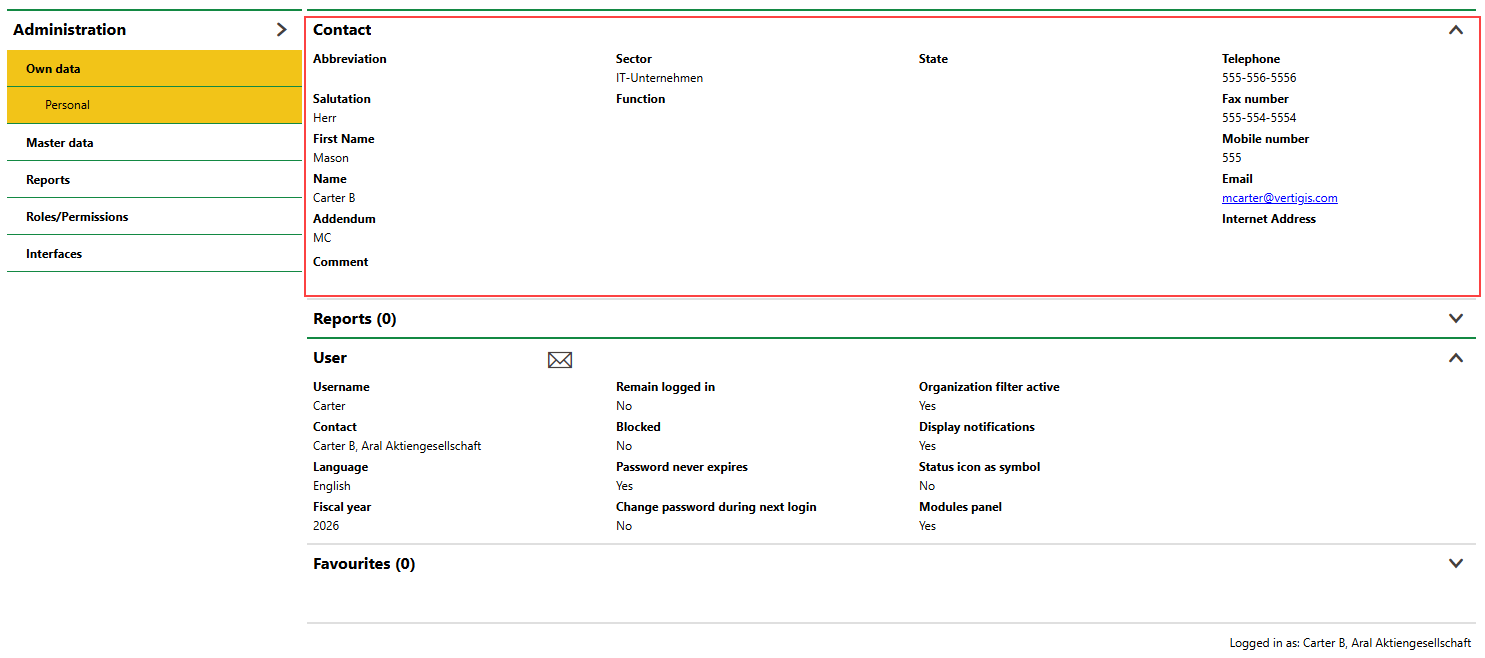
Personal Data Page for User Linked to Contact
Access the Personal Data page by clicking Personal Data in the bottom-left corner of any page in VertiGIS FM.
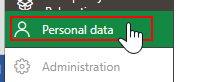
Personal Data Link
Personal Page Sections
Your personal own data page includes the sections and information fields below, depending on whether your user profile is associated with an employee or a contact.
Personal Page Sections
Section |
Associated Contact Type |
|---|---|
Employees |
Employee |
Personal Data |
Employee |
Characteristics |
Employee |
Absences |
Employee |
Bank Accounts |
Employee |
Token |
Employee |
Contact |
Contact |
Reports |
Contact and employee |
User |
Contact and employee |
Favourites |
Contact and employee |
Employees
If your user is associated with an employee, the Employees section stores your basic employee information. With administrative privileges, you can edit data in the Employees, Personal Data, and Characteristics sections by clicking the Edit ( ) icon in the Employees section.
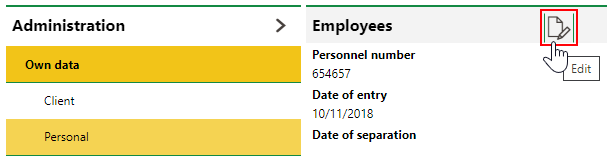
Edit Icon on the Personal Data Page (Employee)
Employee
Field |
Description |
|---|---|
Personnel number |
An internal identification number assigned to the employee by the company. |
Date of entry |
The date the employee joined the company. |
Date of separation |
The date the employee left the company, if applicable. If you select a date in this field, the employee's name will appear in red text in the Employees section on the Administration > Own Data > Client or Tenant page. Users will no longer be able to select the employee in information fields in which employees are selected throughout the application. |
Abbreviation |
An abbreviation that can be used to identify the employee. |
Salutation |
The salutation used by the employee (Mr., Ms., Dr., etc.). Selectable options are stored in the Contact Management catalog. |
Title |
The employee's academic credentials. |
First Name |
The employee's first name. |
Name |
The employee's last name. |
Addendum |
Additional information that describes the employee. |
Signature |
|
Telephone |
A telephone number for the contact. |
Fax number |
A number to which documents can be faxed to the contact. |
Mobile number |
The contact's cell phone number. |
The employee's email address. |
|
Internet Address |
The employee's web page. |
Function |
The role or occupation of the contact. |
Division |
The department within the company that the employee works for. Selectable options are stored in the Divisions section on the Own Client adminisration page. |
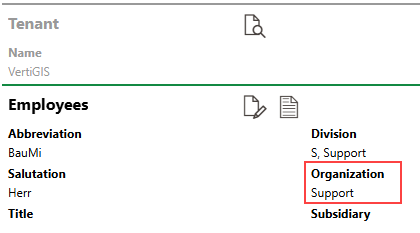
Organization |
The section of the company's organizational structure in which the employee works. For example, its North American or European operations. Selectable options are stored in the Organization section on the Own Client adminisration page. The organization associated with the employee determines which type of assets they are able to view in VertiGIS FM if their user's Organization filter active property is enabled. Refer to Organization Filter Active. |
Subsidiary |
The subsidiary or branch of the company the employee is associated with. |
Cost Center |
The cost center associated with the employee. |
State |
The current status of the employee. |
Sector |
The sector in which the employee works. This value is inherited from your company but can be changed. Selectable options are stored in the Sector section in the Contact Management catalog. |
Comment |
Any additional information on the employee. |
You can edit the fields in the Employees section on your Personal administration page or on your employee details page.
Personal Data
Field |
Description |
|---|---|
Country |
The country in which the employee is located. |
Federal State |
The federal state (state, province, or regional jurisdiction) in which the employee is located. Federal states must be added to the country selected above to be selectable from this menu. Refer to country management for more information. |
ZIP Code |
The ZIP code or postal code of the employee's location. |
City |
The city in which the employee is located. |
Street |
The street on which the employee is located. |
Number |
The street address at which the employee is located. |
Telephone |
The employee's telephone number. |
Fax Number |
The employee's telephone number. |
Mobile Number |
The employee's fax number. |
The employee's email address. |
|
2nd address |
A check box that, if selected, allows you to enter a second country, Zip Code, City, Street, and Number for the employee. |
Nationality |
The employee's nationality. |
Gender |
The employee's gender. |
Date of birth |
The employee's date of birth. |
Characteristics
Field |
Description |
|---|---|
Working time from |
The time of day the employee starts work. |
Working time till |
The time of day the employee ends work. |
Weekly working hours |
The number of hours the employee works every week. |
Duration of break |
How long the employee's lunch break lasts. |
Internal hourly rate |
How much the employee is paid hourly for work done within the company. |
External hourly rate |
How much the employee is paid hourly for work done outside of the company. |
Job title |
The employee's job title or role. |
Qualification |
The employee's qualifications or degrees. |
Trades |
The field in which you are skilled or qualified (plumber, electrician, etc.). Information-only field. |
Foreign languages |
Any foreign languages the employee speaks. |
Suitable for height |
Whether the employee is comfortable working at heights (for example, on a ladder or building roof). |
Workwear |
Whether the employee requires special gear or equipment to perform their job. |
Comments |
Any additional information relevant to the fields in this section. |
Bank Accounts
You can store the employee's banking information in the Bank Accounts section for payroll purposes. You can add multiple bank accounts, if necessary.
To add a bank account, click the Add ( ) icon. You can enter the account information shown below.
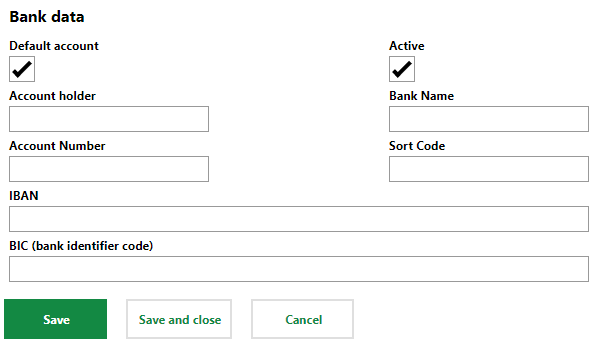
Bank Account Form for a Contact or Employee
Contact
If your user is associated with a contact, the Contact section stores your basic contact details. With administrative privileges, you can edit your high-level contact details or your contact types when you click the Edit () icon in the Contact section.
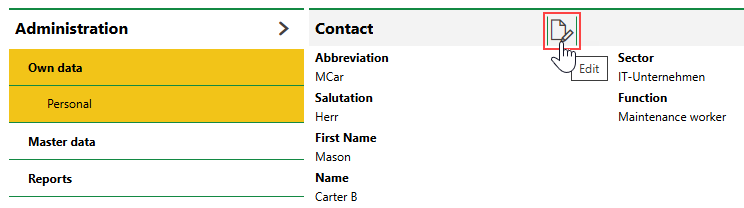
Edit Icon on the Personal Data Page (Contact)
Contact
Field |
Description |
|---|---|
Abbreviation |
An abbreviation that can be used to identify the contact. |
Salutation |
The salutation used by the contact (Mr., Ms., Dr., etc.). Selectable options are stored in the Salutation catalog. |
First Name |
The contact's first or given name. |
Name |
The contact's last name. |
Addendum |
Additional information that describes the company. |
Company |
The company the contact works for. If you select the VertiGIS FM own client or tenant (Administration > Own Data > Client or Tenant), the person will be entered into the system as an employee, not a contact. |
Subsidiary |
The subsidiary or branch of the company the contact is associated with. |
Sector |
The sector in which the contact works. This value is inherited from the contact's company (if they are associated with one) but can be changed. Selectable options are stored in the Sector catalog. |
Function |
The contact's role or occupation. This is an information-only field. |
State |
The contact's current status. Selectable options are saved in the Contact Status catalog. |
Telephone |
The contact's telephone number. |
Fax number |
The contact's fax number. |
Mobile number |
The contact's mobile number. |
The contact's email address. |
|
Internet Address |
The contact's web page. |
Comment |
Additional information about the contact. |
Contact Types
You can also edit the contact's contact types when you edit their contact information. Refer to Contact Types for more information.
User
The User section stores information related to your VertiGIS FM user, including your login credentials. With administrative privileges, you can edit your user information by clicking the Edit () icon in the User section.
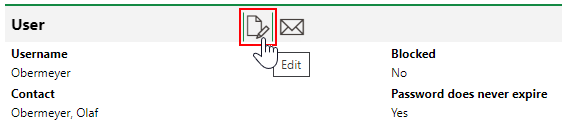
Edit Icon in the User Section
Users without administrative privileges cannot edit all of the information fields associated with their user. Administrators can edit these properties on the Administration > Roles/Permissions > User Management page.
User Fields
Field |
Description |
Edit Privileges |
|---|---|---|
Username |
Your username. |
User |
Contact |
The contact associated with your user. |
Administrator (Administration > Roles/Permissions > User Management) |
Language |
The language you speak. |
User |
Fiscal year |
The default year for invoices or other financial entities the user works on. |
User |
Organization filter active |
A check box that, if selected, means the user can only access devices and inventory items (building or playground) that have the user's Organization property selected in the asset's Organization field. The user also cannot see entities (for example, orders or invoices) that are associated with the asset if the asset has an Organization property that differs from the user's.
Asset Organization Property If the user's Organization Filter Active check box is selected, they can see assets that have the same Organization property as the one associated with their user as well as assets that have no organization selected. Organizations in your system are managed in the Organizations section on the Own Client or Tenant administration page. A user's Organization property is selected in the employee details for the employee associated with the user profile.
Employee Organization Property |
Administrator (Administration > Roles/Permissions > User Management) |
Remain logged in |
Whether you want the to remain logged in between sessions using the same browser. |
User |
Blocked |
Whether you are blocked from signing in to VertiGIS FM. If the user signs in with incorrect credentials three times, the system will block them for one hour. This check box can be deselected to unblock them. |
Administrator (Administration > Roles/Permissions > User Management) |
Password never expires |
Whether you want your password to expire. |
Administrator (Administration > Roles/Permissions > User Management) |
Change password during next login |
Whether you want to reset your password the next time you log in. |
Administrator (Administration > Roles/Permissions > User Management) |
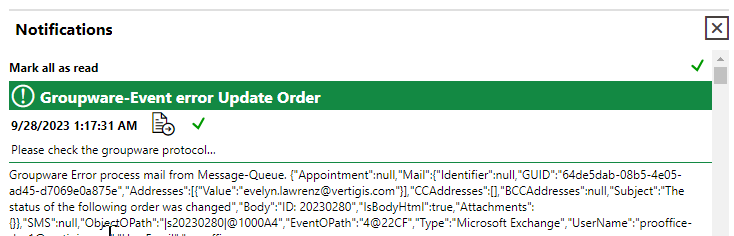
Display notifications |
Whether you want the notification protocol to display when you sign in. Typically, this feature is only selected for administrators.
Notification Protocol Dialog |
User |
Status icon as symbol |
Whether you want to see statuses represented by symbols instead of colours in the user interface. Typically, this feature is selected for users with color vision deficiency.
|
User |
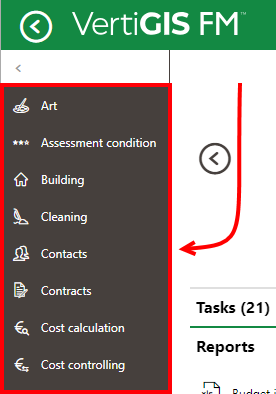
Navigation bar |
Whether you want to see the navigation section in the left pane to navigate to different VertiGIS FM products and modules.
|
User |
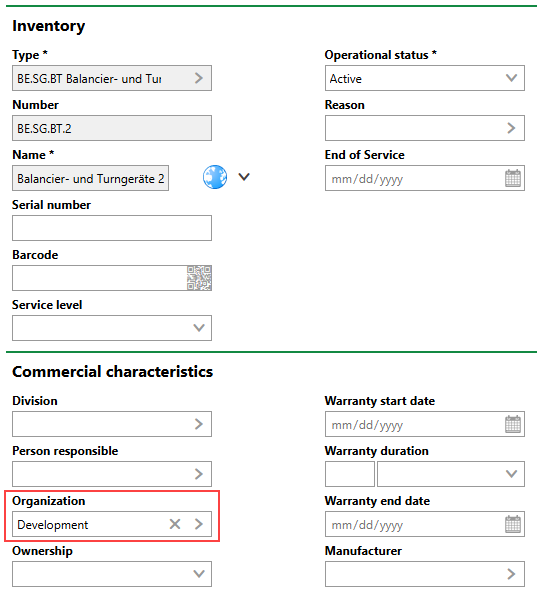

You can also reset your password in the User section.
Favourites
In the Favourites section, you can limit the instances of data object your VertiGIS FM user sees to the ones you work on or are responsible for. You can add items to this section when you click the Edit () icon in the User section on the Administration > Roles/Permissions > User Management page, and then click the Add () icon under Favourites.
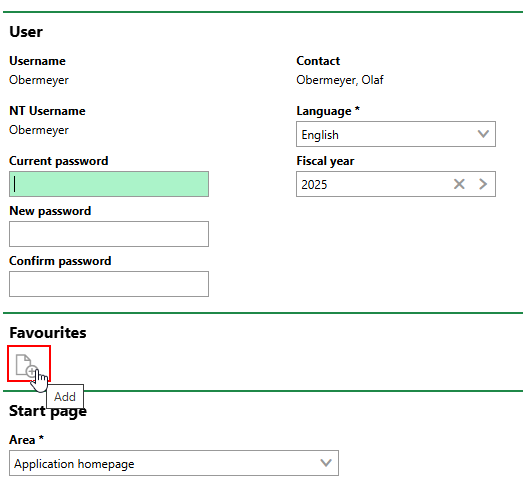
Adding Favourites
You can then select a type of data object and, select the instances of the data object relevant to your duties, and click Apply. If you add at least one instance of a data object, your VertiGIS FM user will not see other instances of the data objects.
For example, if your duties involve maintenance tasks on only two real estates, you can add them in this section. Other real estates in your database will not appear on the search page or in any menus in which you select a real estate, preventing you from needing to sort through a long list to find and select the real estates you work on.
1.1 User with no Favourites |
1.2 Real Estate Search with No Favourites |
2.1 User with Two Real Estates in Favourites |
2.2 Real Estate Search with Favourites |
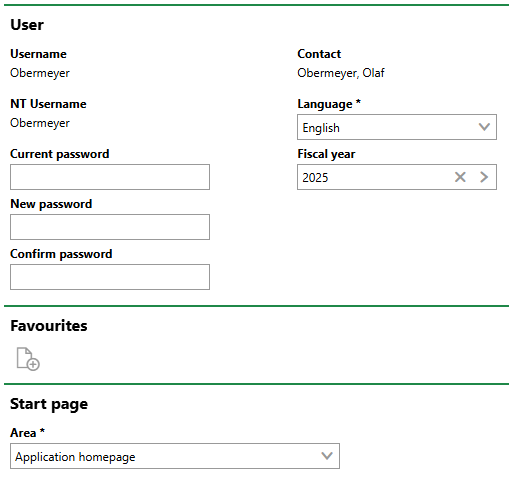
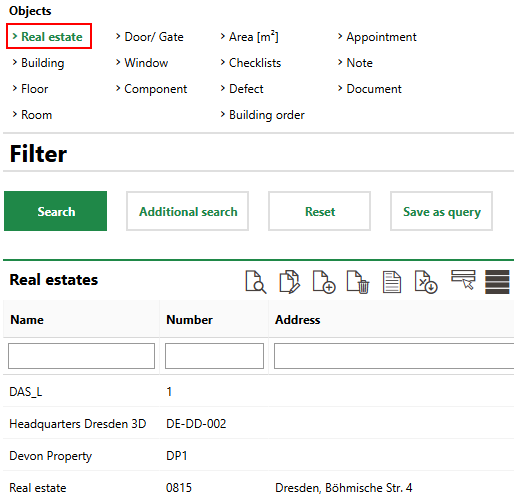
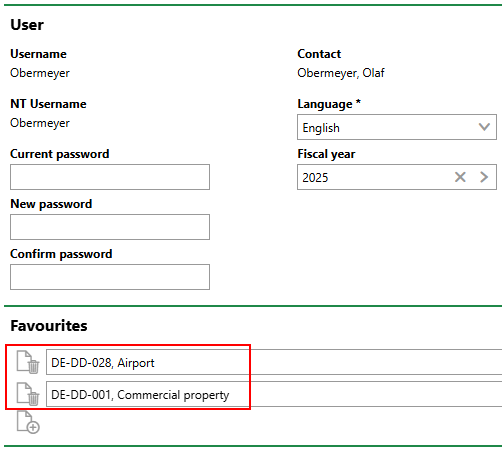
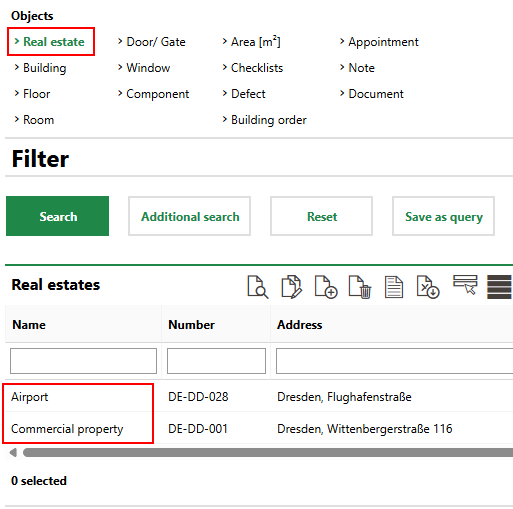
Favourites are manged hierarchically, which means any high-level objects you add to this section will filter out lower-level objects that are not directly beneath it. For example, if you add a real estate as a favourite, you will only see buildings located on that real estate. Buildings located on other real estates will be filtered out from your user's view, like its parent real estate.
User with Two Real Estates in Favourites |
Real Estate Search with Favourites |
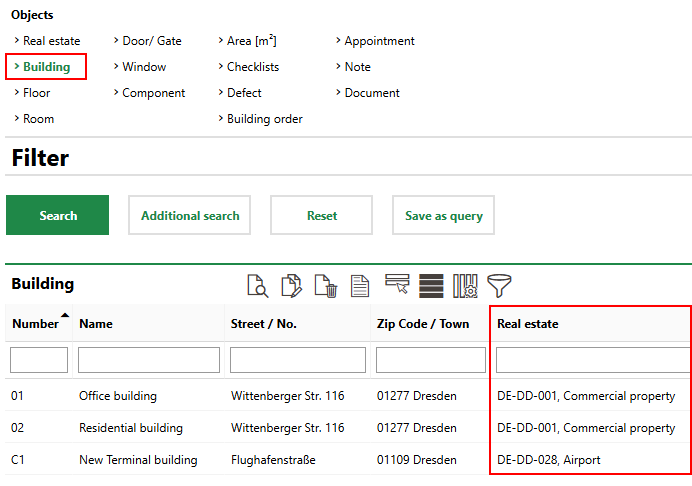
You can add data objects lower in a hierarchy by double-clicking its parent in the Favourites selection dialog, instead of selecting it and clicking Apply. To add a building, for example, double-click the real estate in which it is located in the Favourites dialog, and then select one of the building on the real estate and click Apply.
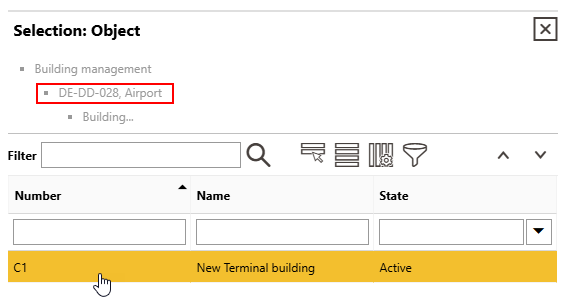
Adding a Building on a Real Estate as a Favourite
When you apply a favourite to your user's settings, a star icon appears in the top-right corner of all the dashboard pages when you are signed in to VertiGIS FM.
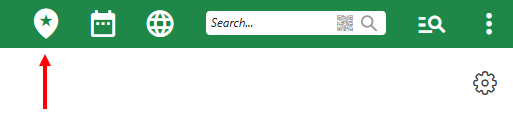
Favourite Indicator Icon