As an administrator, you can use structural rights to limit the objects users can access within a VertiGIS FM product that employs hierarchical asset management structures. These include VertiGIS FM Maintenance, VertiGIS FM Contracts, and the Fleet Management and Inventory Management modules.
Structural rights allow users to work within VertiGIS FM products used by your company without giving them access to all assets managed in the product. To use structural rights, you must first give the user or their role permission to access the product. You can then apply structural rights to limit the user's access to certain assets managed within the product.
For example, your company may have an external contractor working on an air conditioning system managed in VertiGIS FM Maintenance. They must access VertiGIS FM to document their work, but you do not want them to be able to see your other assets in the application. You could create a user for the contractor and then apply structural rights to limit their access to the group or version that contains the air conditioning system.
Structural rights are managed on the Structural Rights administration page (Administration > Roles/Permissions > Structural Rights).
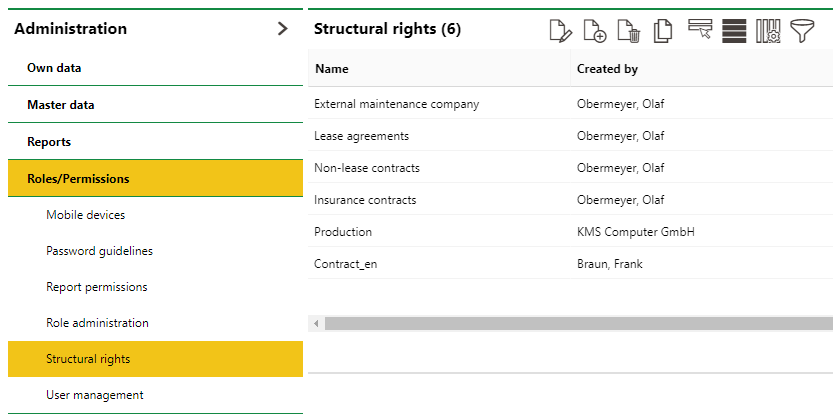
Structural Rights Administration Page
Create a Structural Right
When you create a structural right, you define the users to groups to whom it should be applied and then ensure only the assets to which they should have access are selected.
1.Navigate to the Administration > Roles/Permissions > Structural Rights page.
2.Under Structural Rights, click the Add ( ) icon.
3.In the Name text box, enter a name for structural right.
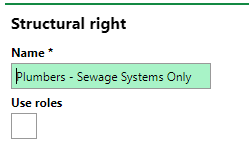
4.Select the users or roles whose permissions the structural right should further restrict.
▪To apply the structural right to individual users, select the users whose access to the VertiGIS FM you want limited by the structural right.
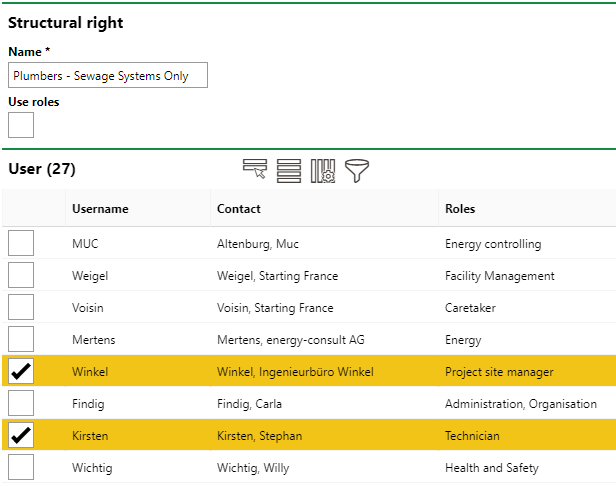
▪To apply the structural right to a group of users who share the same user role, select the Use Roles check box and then select the roles whose access to the VertiGIS FM you want limited by the structural right.
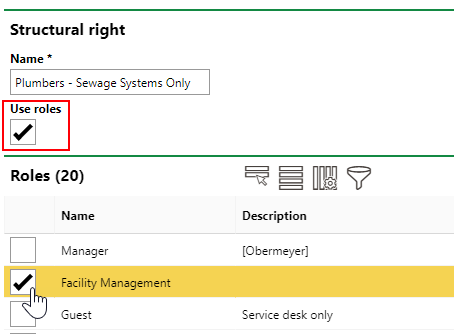
5.Expand the section for the VertiGIS FM product that contains the assets to which you want to limit the user's or role's access.
6.Select the check boxes next to the versions to which you want the limit the users' or roles' access.
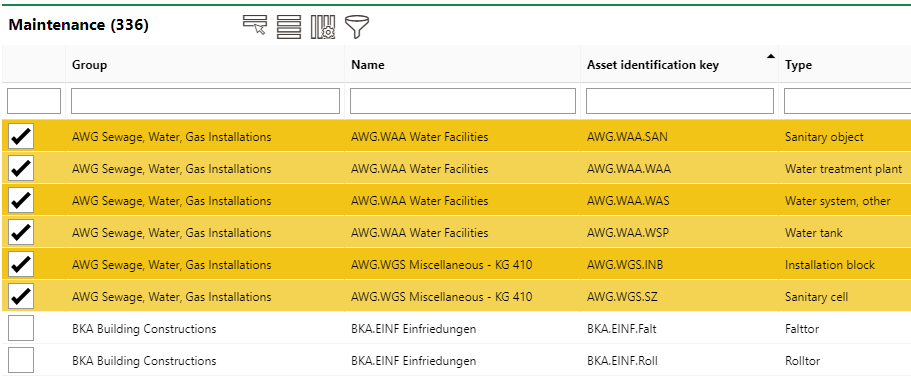
For VertiGIS FM Maintenance, each version is listed as a separate row. To limit a user's or role's access to an entire group of assets, you would need to select the check box for each version within the group.
7.Click Save and Close.
The users or roles to whom you applied the structural right now have access to only the assets specified in the structural right.
The user or role to whom you are applying the structural right must have access to the product whose assets are selected in the structural right.
Copy a Structural Right
You can copy a structural right if you want to make slight adjustments to the assets to which an existing right allows access and assign it to different users or roles.
To copy a structural right, select the structural right you want to copy on the Administration > Roles/Permissions > Structural Rights page and click the Copy ( ) icon.
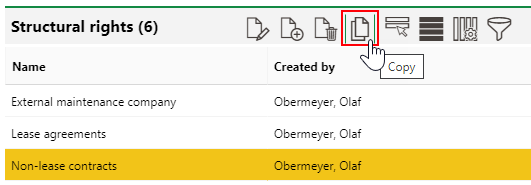
Copy Structural Right Icon
You can then follow the procedure from step 3 onward as outlined in To Create a Structural Right.
Edit or Delete a Structural Right
You can any details within a structural right by selecting it and clicking the Edit ( ) icon, or delete a structural right by selecting it and clicking the Delete (
 ) icon.
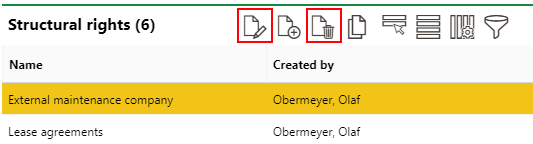
Edit and Delete Icon on the Structural Rights Page