To enable OAuth SSO in VertiGIS FM, register and configure an application in the Microsoft Entra admin center.
You must have an Azure account with an active subscription and Cloud application administrator privileges to complete this section.
Register the Application
Begin by navigating to https://entra.microsoft.com/#home and signing in to your account. On the admin center landing page, click Go to Microsoft Entra ID.
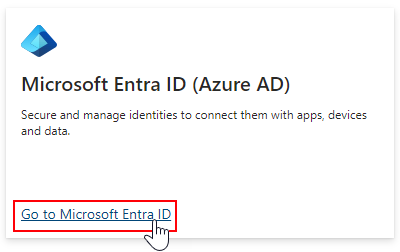
Link to Microsoft Entra ID
In the left pane, under Identity, click Applications > App registrations.
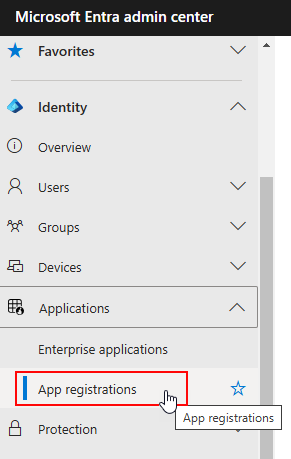
App Registrations Link
Click New Registration.
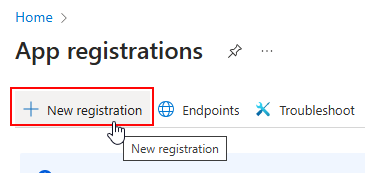
Link to Register New App
Enter the name for the application (for example, Enter value) and select Register an application to integrate with Microsoft Entra ID (App you're developing).
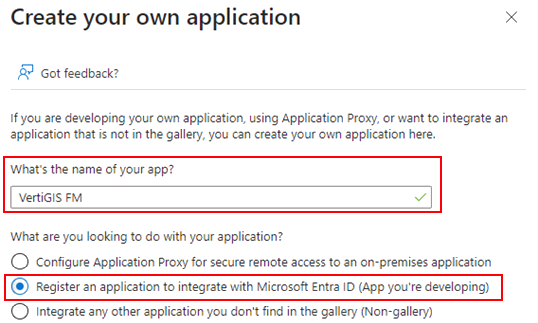
Generic App Name and Integration Selection
In the Name text box, enter a user-facing display name for the application. Under Supported account types, select Accounts in this organization directory only.
Configure the Application for OAuth
Open the Single sign-on tab in the Manage menu. On the Configure application properties tile, click Go to application.

Link to New Application
You can now complete the Authentication, Certificates & secrets, Token Configuration, and API Configuration sections below. You can access these sections from the Manage menu that loads.
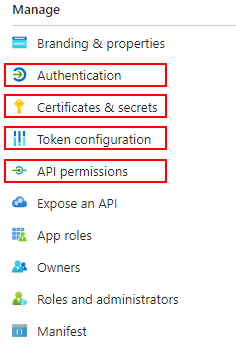
Manage Menu for Registered App
You must also complete steps on the Users and Groups tab.
Authentication
In the Authentication tab, click Add a Platform.

Add a Platform Button for Application Authentication
Configure redirect URIs for the web, iOS, and Android platforms. Refer to the table below for required inputs.
Inputs for Redirect URI Configurations
App |
Input(s) |
||||
|---|---|---|---|---|---|
Web |
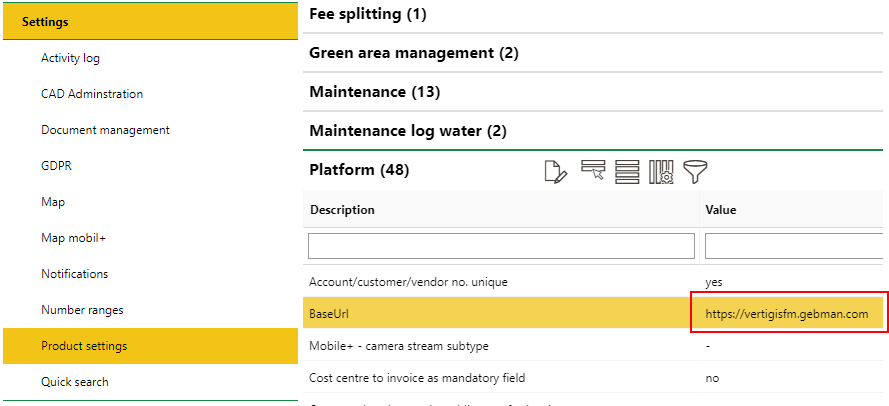
Enter your VertiGIS FM BaseUrl as the redirect URI. You can find the BaseUrl in the Administration > Settings >Product Settings page, in the Platform section.
BaseUrl Value in VertiGIS FM Product Settings Click Configure when complete. |
||||
iOS / macOS |
Click Configure and then Done when complete. |
||||
Android |
Click Configure and then Done when complete.
Package Name and Signature Hash Inputs for Android |
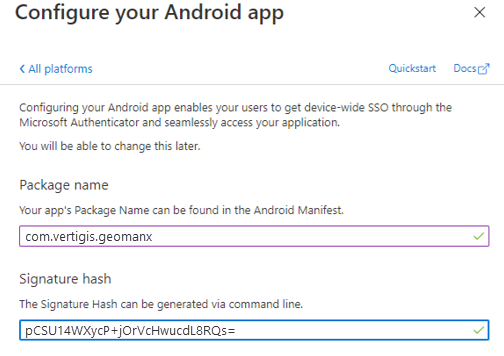
Enter the generated redirect URIs when you configure OAuth in VertiGIS FM.
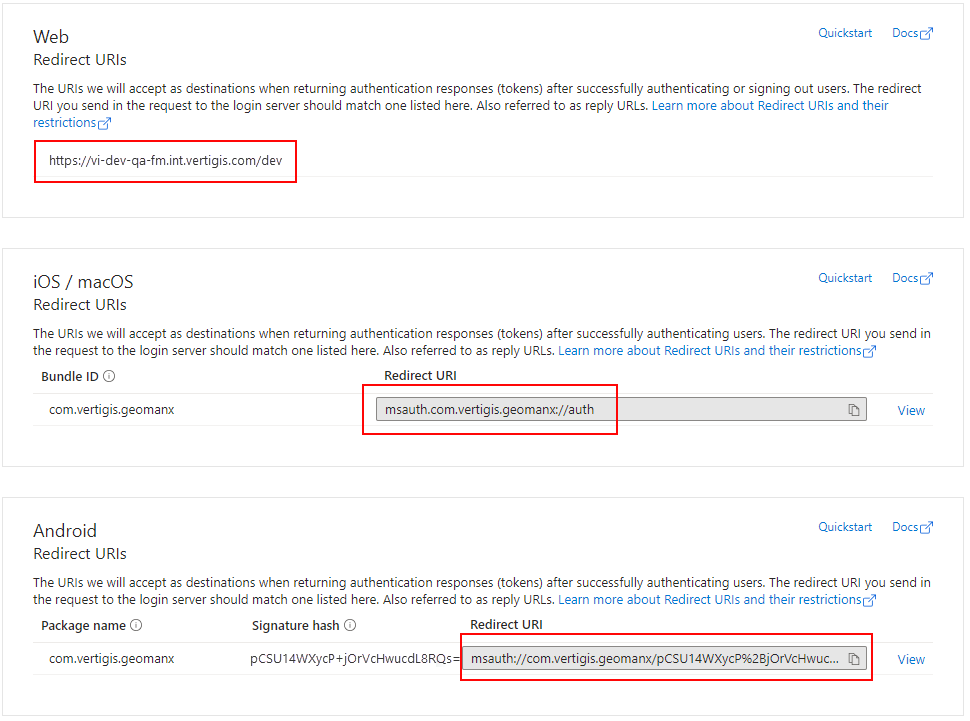
Platform Configuration for Web
Certificates & secrets
In the Certificates & secrets tab, open the Client secrets tab and click New client secret. Enter the string the application uses to prove its identity when requesting a token.
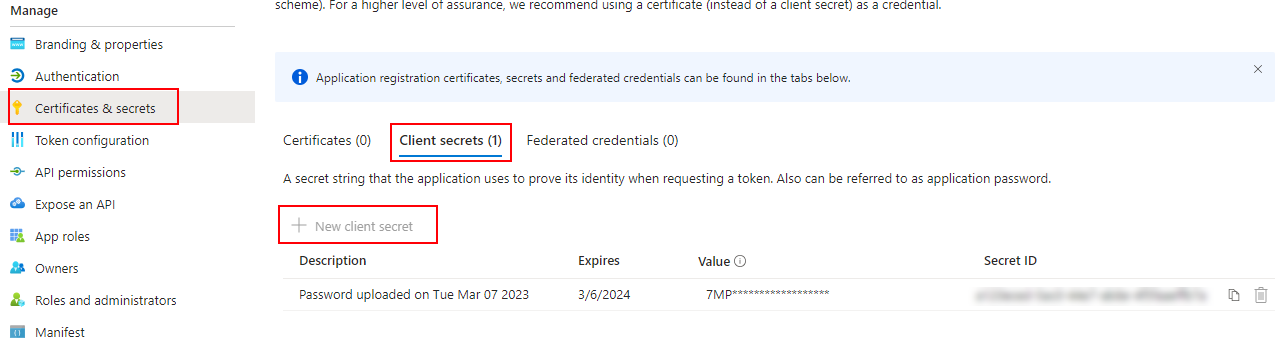
Add Client Secret for Application
Token Configuration
In the Token Configuration tab, click Add optional claim.
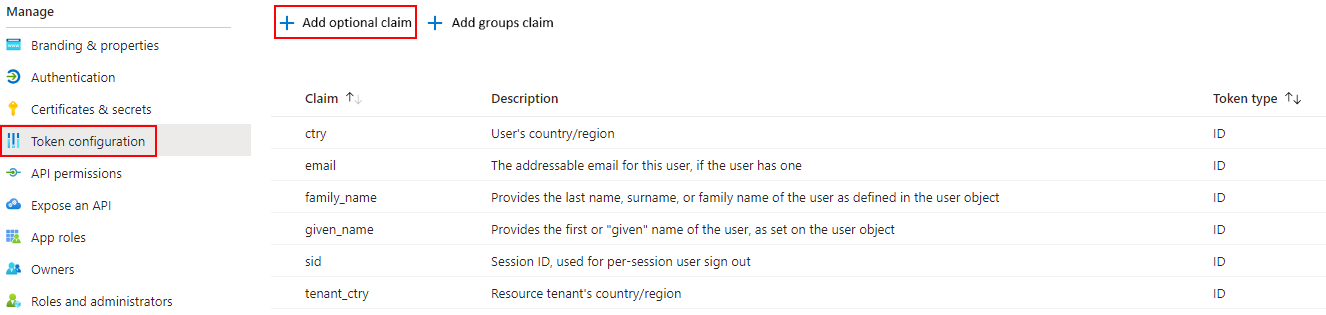
Add Optional Claim Button in the Token Configuration Section
When you add the optional claim, select the Turn on the Microsoft Graph email, profile permission check box.
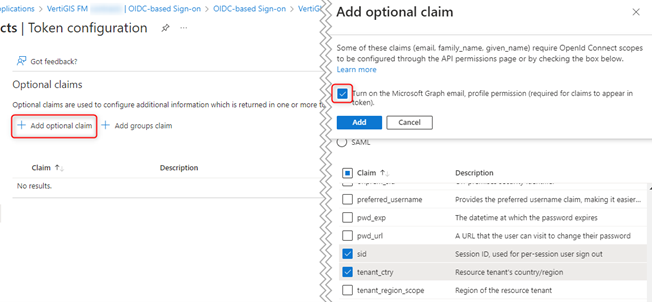
Add Optional Claim
API Permissions
In the API Permissions section, add permissions outlined in the table below under Microsoft Graph.
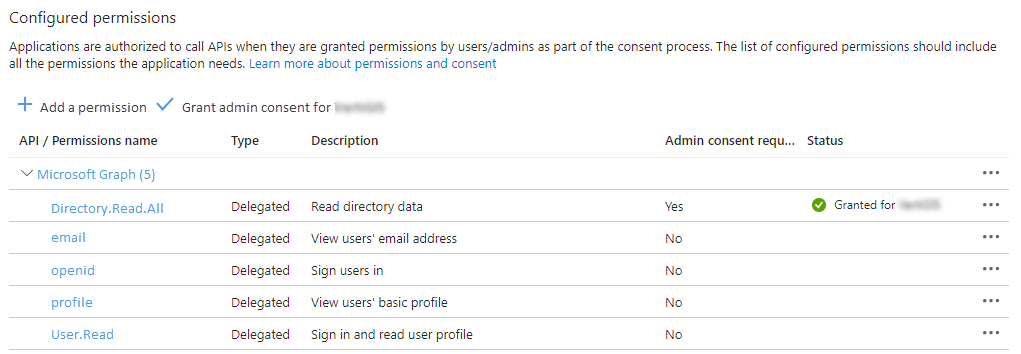
Configured Permissions in API Permissions
API Permissions for OAuth App
Permission |
Admin Consent Required |
|---|---|
Directory.Read.All |
Yes |
No |
|
openid |
No |
profile |
No |
User.Read |
No |
Users and Groups
On the enterprise application page, click Users and Groups.
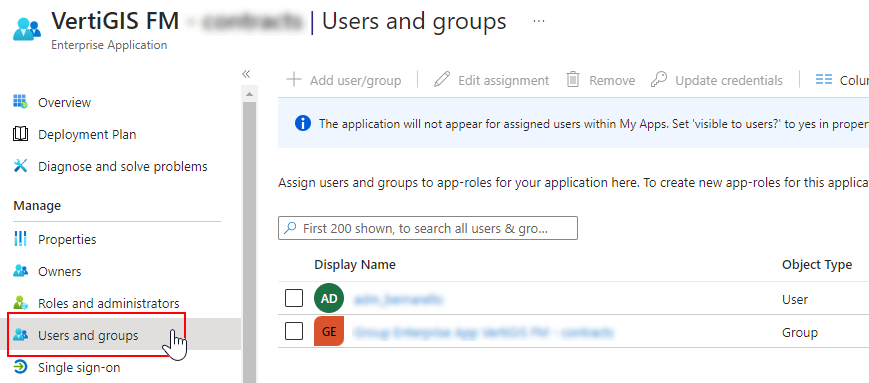
Users and Groups Page
Restrict access to the application by making sure only users or groups you want to access it are added on this page.