When you have registered an application and produced redirect URIs for web, iOs, and Android, you can configure OAuth in the external authentication section of VertiGIS FM.
Advanced knowledge of the Microsoft Graph API, claims, groups, and roles in Microsoft Entra ID is required to complete this procedure. In several fields, inputs vary depending on how Microsoft Entra ID is configured.
To Configure OAuth in VertiGIS FM
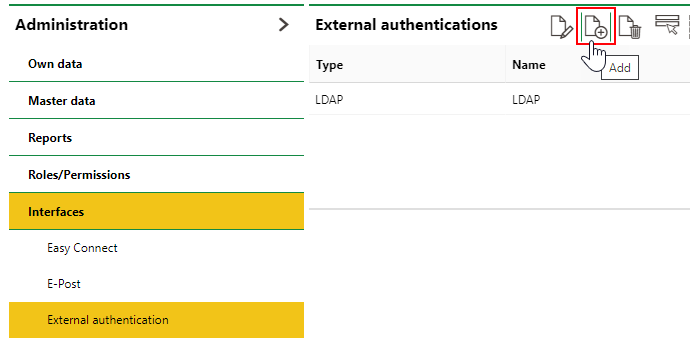
1.In VertiGIS FM, navigate to the External Authentications page (Administration > Interfaces > External Authentication).
2.Click the Add ( ) icon.
3.Enter inputs in the form fields as outlined in the OAuth configuration details.
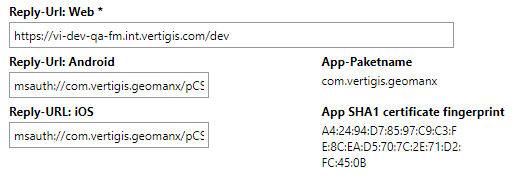
Inputs for the Reply-URI: Web, Reply-URI: Android, and Reply-URI: iOS fields are generated using the OAuth provider.
4.Click Save and Close.
OAuth Configuration Details
Use the sections and parameters below to configure OAuth according to your environment and access needs.
Inputs vary depending on how Microsoft Entra ID is configured.
Core Properties
Field |
Input |
|---|---|
Active |
Select the check box to make authentication method available for users in the system. |
Name |
Enter a name for the authentication method (for example, OAuth). |
Known OpenID Connect Providers |
Select the identity provider (for example, Microsoft Entra ID). |
Reply-Url: Web * |
Enter the base URL of the application here. This value must be entered as the "Reply" or "Response" URI when you set up the authentication point with the OAuth provider. |
Reply-URI: Android and Reply-URI: iOS |
Enter the reply, response, or redirect URIs generated by the OAuth provider. The App-Paketname and App SHA1 certificate fingerprint fields to the right of the Reply-URI: Android and Reply-URI: iOS text boxes are used to generate these endpoints. |
DiscoveryUrl * |
Enter the URL specified by the OAuth provider. This URL is used to retrieve the data required for authentication. |
Designation |
Enter a name for the OAuth configuration. |
ClientID * |
Enter the client ID specified by the OAuth provider. The system uses this ID to identify the OAuth profile. |
ClientSecret * |
Enter the password provided by the OAuth provider. |
Scope |
Enter a character string that specifies the fields or authorizations sent to VertiGIS FM from the OAuth provider. The information can vary from provider to provider. |
Claim Sources
Field |
Input |
|---|---|
Access Token |
Whether the system retrieves claims from the access token issued when the user authenticates. |
User Endpoint |
Whether the system retrieves claims from an endpoint with user information. |
Roles
Field |
Input |
|---|---|
Transfer roles |
Select this check box if you want groups in Microsoft Entra ID to be converted to roles in VertiGIS FM. If a user's group in the Microsoft Entra ID maps to a role that exists in VertiGIS FM, they are assigned the role when they authenticate in VertiGIS FM for the first time. To enable the role transfer functionality, you must have already created roles with names identical to the ones in the directory. |
Field roll-name |
Enter the source type used to define roles in Microsoft Entra ID. In the example below, the input #microsoft.graph.group tells VertiGIS FM to assign the user roles based on their groups. |
Default role |
As an alternative to transferring roles from the identity provider, you can specify an existing VertiGIS FM role that the system assigns to a user when they authenticate in VertiGIS FM. Any role you have already created in VertiGIS FM can be selected. If you want to manually add roles to users created via OAuth, do not select any default role. |
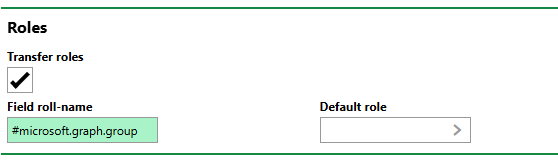
Roles Section
Users
Field |
Input |
|---|---|
Field user / member of |
Enter the name of the claim that contains group membership in Microsft Entra ID (for example, memberOf or groups). This tells VertiGIS FM where to look for the user's group memberships. |
Field user SID |
Enter a claim that tells VertiGIS FM what to use as the user's Security Identifier (SID). |
Field user name |
Enter a claim that tells VertiGIS FM what to use as the user's user name. In the example above, the user's preferred_username value in Microsoft Entra ID will be adopted as their user name in VertiGIS FM. |
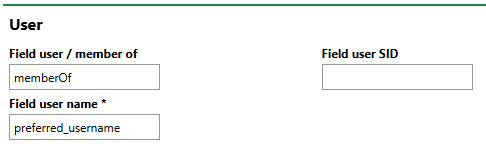
User Section
Refer to User Management.
Employees
In the Employees section, specify the data to populate the employee associated with the authenticated user. Enter claims or keys for the various information fields to allow VertiGIS FM to retrieve employee data from the OAuth provider (Microsoft Entra ID) for the user authenticating.
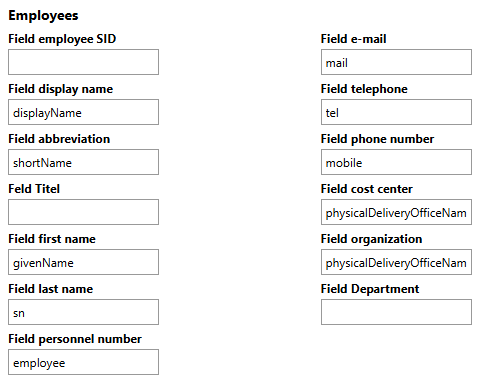
Employee Properties in User Section
Settings
In the Default User field, you can select a user whose user properties will be assigned to users who authenticate via OAuth. User properties are attributes specific to individual users that can exist within the same user roles (for example, the user's language, password, display settings, and more).
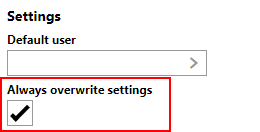
Overwrite Settings Check Box
If you select the Always Overwrite check box, the user is updated with the settings stored in this section every time they log in, not just the first time.